LOOKPORT / TICKETING & EVENT BUDGETING
UTM Tracking for Events: A Practical Guide for UK Promoters
Learn how to tag event links with UTM parameters, name campaigns cleanly and read GA4 reports so you can see which marketing actually sells tickets.

UTM tracking for events means adding short tags to the links you share, so Google Analytics can show which email, ad or social post sent each visitor to your event page. Tag every link you control with a source, a medium and a campaign name. Keep the naming consistent, then check the campaign reports against ticket sales, not just clicks. This guide covers the set-up, a naming system you can copy, the GA4 reports to open, and the limits to know before you move budget.
TL;DR
- Add
utm_source,utm_mediumandutm_campaignto every link you control: emails, paid social, search ads, partner listings and artist posts. - Use lower case and a fixed pattern that includes the event and the year, so reports stay clean across a tour.
- In GA4, open the Traffic acquisition report and switch the first column to session campaign to see your tags.
- Clicks are not sales. Count only visitors who reach checkout or buy, and check how your ticket checkout reports back to GA4.
- Treat UTM data as one input. Compare it with your sales reports before you change budget.
Table of Contents
- What UTM parameters do for an event
- The three parameters to always use
- Naming rules that keep your data usable
- Where to place tagged links
- Reading your campaigns in GA4
- Connecting UTM tags to ticket sales
- Limits of UTM-based attribution
- Turning the data into a decision
- Lookport Ticketing for promoters who track sales
- A pre-launch checklist
- FAQ
- Sources
What UTM parameters do for an event
UTM parameters are small text additions to the end of a URL. When someone clicks a tagged link, the values travel with them to your site. Google’s own guidance explains that campaign parameters added to destination URLs in referral links and ad campaigns let you see which campaigns refer traffic, and that the values appear in the Traffic acquisition report in Analytics (Google Analytics Help).
For a promoter, this answers a plain question: of the ten places you promoted this show, which ones sent people who went on to buy? Without tags, much of that traffic lands in broad buckets such as “direct” or “social”. With tags, you can separate the newsletter to past buyers from the paid ad aimed at new audiences, or the venue’s listing from the headline act’s post.
UTM tags only describe how a visitor arrived. They do not record a sale by themselves. You need a conversion event, such as a ticket purchase or a checkout start, for the tags to mean anything. We cover that below.
The three parameters to always use
Google recommends always using three parameters: utm_source, utm_medium and utm_campaign (Google Analytics Help). The same page describes them as follows:
utm_sourceidentifies the referrer, for example a newsletter or a social platform.utm_mediumidentifies the marketing medium, for example email or paid social.utm_campaignidentifies the product, slogan or promo code the link belongs to.
For events, a simple reading works well:
| Parameter | What you put in it | Example value |
|---|---|---|
utm_source |
Where the link is placed | newsletter, instagram, venue-site |
utm_medium |
The type of channel | email, paid-social, cpc, referral |
utm_campaign |
The show, tour leg or push | autumn-tour-onsale-2026 |
Google also supports optional parameters for content and term. They are useful when you run two versions of an ad or want to separate keywords, but start with the three above. A tracking plan you can keep up beats a detailed one that nobody maintains.
Naming rules that keep your data usable
Most UTM problems are naming problems. Email, email and e-mail show up as three different rows. A campaign called launch this year and launch next year merge into one muddy total.
The University of Manchester’s marketing team publishes internal guidance that is easy to adapt. It advises applying UTMs to all traffic you have control over, writing every UTM in lower case to prevent confusion or duplication, and adding the date at the end of the campaign element (University of Manchester, Directorate of Communications, Marketing and Student Recruitment).
For a promoter, turn that into a short house style:
- Lower case only. No capitals, no spaces. Use hyphens between words.
- One fixed list of sources and mediums. Agree them once and reuse them. A shared spreadsheet is enough.
- Campaign pattern: show, phase, year. For example
city-hall-onsale-2026orsummer-fest-lastchance-2026. - No personal data. Never put names, email addresses or customer IDs in a tag. The URL is visible to the visitor and can end up in logs.
- One owner. One person approves new values, so the list does not drift.
A worked example (hypothetical)
The figures and names below are invented to show the method. They are not results from any real event.
Imagine a promoter selling a 1,200-capacity show. They tag five links to the same ticket page:
| Placement | utm_source | utm_medium | utm_campaign |
|---|---|---|---|
| Presale email to past buyers | newsletter |
email |
spring-show-presale-2026 |
| General on-sale email | newsletter |
email |
spring-show-onsale-2026 |
| Paid social ad, lookalike audience | facebook |
paid-social |
spring-show-onsale-2026 |
| Search ad on the artist name | google |
cpc |
spring-show-onsale-2026 |
| Venue website banner | venue-site |
referral |
spring-show-onsale-2026 |
Because the campaign name stays the same across channels and the medium changes, you can compare channels inside one campaign, then compare presale against general sale. If you want a tour view, keep a consistent prefix for the tour so you can filter on it.
Where to place tagged links
The rule is simple: tag every link that leads to your event or ticket page and that you control. That covers:
- Email. Presale announcements, on-sale reminders, last-chance messages and post-show follow-ups.
- Paid social and search. Add tags to the final URL of each ad. Some platforms add their own tracking as well, so check that your tags survive the redirect.
- Organic social. Links in bios, stories and pinned posts. Use a different
utm_campaignorutm_contentfor the artist’s account and the venue’s account. - Partner and venue listings. Ask venues, local press, radio and promoters’ partners to use your tagged link rather than the plain one.
- Artist and agent channels. Send the artist’s team a ready-made link for each post type.
- QR codes on posters and flyers. Give each print placement its own
utm_mediumsuch asprintand a distinct source, so you can compare the poster at the station with the flyer at the venue.
Do not tag links that point from one page of your own site to another. Internal tags overwrite the original source of the session and can hide where the visitor really came from. Tag only links that bring people in from outside.
For more on connecting ad platform reports to sales, see our guides on Facebook ads for concerts and Google Ads for event promoters.
Reading your campaigns in GA4
Once tagged links are live, Google’s help page says the parameter values are sent to Analytics and appear in the Traffic acquisition report (Google Analytics Help). In GA4, open Reports, then Acquisition, then Traffic acquisition. The report groups traffic by default channel group or by source and medium. Use the dropdown above the first column to change the dimension to session campaign, session source or session medium, depending on the question.
A few practical habits:
- Check one link first. Click a tagged link yourself and watch it arrive in the Realtime report before you send it to thousands of people.
- Filter by campaign prefix. If every campaign name begins with the show or tour, one filter gives you the whole picture.
- Do not rely on the landing page report for tags. Google notes that UTM parameters are left out of the landing page plus query string and page path plus query string dimensions, and that UTM information is instead populated in the page location dimension (Google Analytics Help). If you search those reports for
utm_and find nothing, that is why.
Connecting UTM tags to ticket sales
Sessions are a useful first signal. They are not the goal. A campaign that sends 10,000 visitors and no buyers is worse than one that sends 500 visitors and 50 buyers. To see the difference you need GA4 to record a conversion, which in GA4 is an event you mark as a key event.
For ticketing, the events worth recording are, in order of value:
- Purchase, with the order value if your set-up can pass it.
- Begin checkout, which shows intent even if the sale completes elsewhere.
- Ticket page view, as a weaker proxy when nothing else is available.
When checkout happens on another domain
This is where many event teams lose attribution. If your ticket checkout is an embedded widget or a hosted page, the purchase may happen on a different domain, and GA4 on your main site may never see it. One tracking consultancy’s set-up guide for a hosted ticketing checkout advises checking whether the account supports adding a GA4 ID or a Tag Manager container to checkout, and passing the client ID from the promoting site into checkout if you send purchase events server-side (Tracking Consulting). The principle applies to any third-party checkout.
Before you spend on a campaign, ask your ticketing provider three questions:
- Can I add my own analytics or tag manager to the checkout?
- Is the purchase confirmation page on my domain, or theirs?
- Can purchase data be sent back to GA4 and to my ad platforms?
If your answers are partial, record begin-checkout clicks on your own site as a fallback, and reconcile against the sales report from your ticketing platform. Your ticketing platform’s own order data is the source of truth for how many tickets were sold. GA4 tells you where the traffic came from.
Two Lookport pages cover related set-up: custom domains for ticketing and ticketing marketing integrations. Our guide to ticketing analytics for UK promoters lists the numbers worth tracking beyond sessions, and the Meta Pixel checks cover the paid social side.
Limits of UTM-based attribution
UTM data is helpful, but it has edges. Knowing them stops you from over-reading a report.
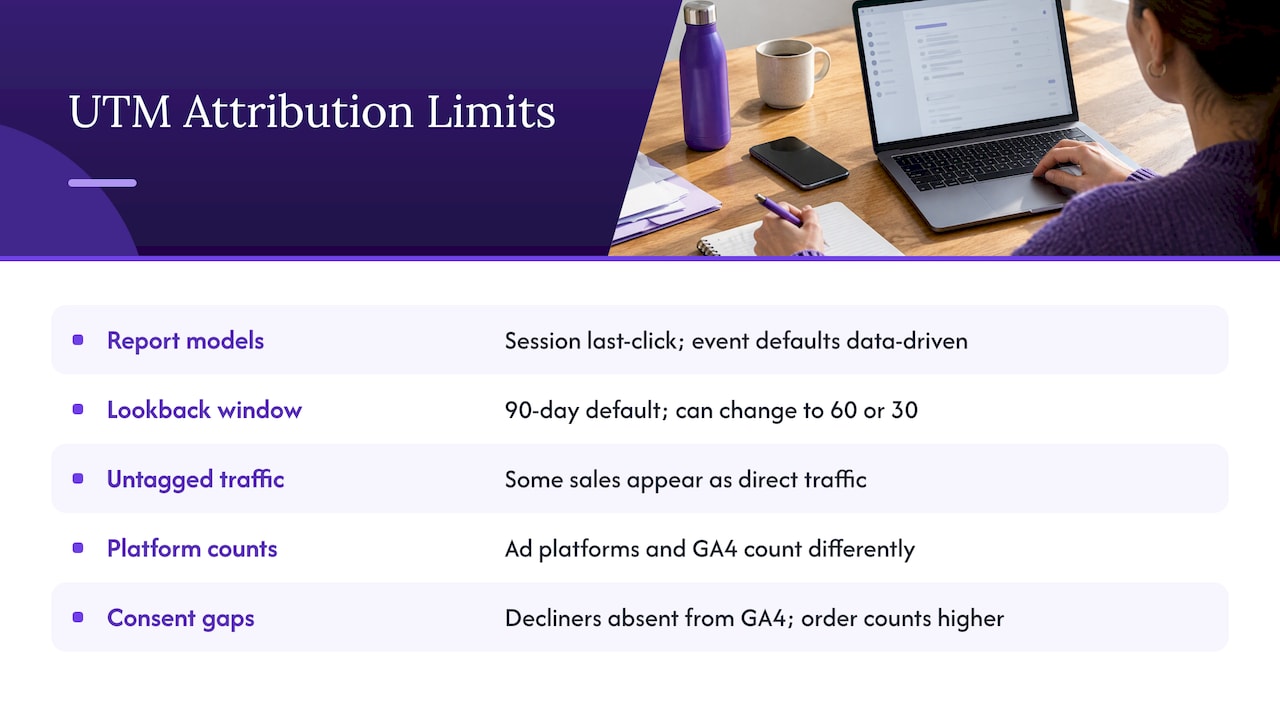
Attribution models differ by report. Search Engine Land’s guide to GA4 attribution explains that session-scope dimensions use last-click attribution, while event-scope dimensions use the model set in the property settings, which defaults to data-driven attribution (Search Engine Land). The same campaign can therefore show different numbers in two reports. Decide which report you use for decisions and stay with it.
Lookback windows matter. The same guide notes that GA4’s default lookback window is 90 days and can be changed to 60 or 30 days (Search Engine Land). Event buying often has a long gap between first seeing a show and buying a ticket, so check the setting against how your sales actually behave.
Untagged traffic hides in other rows. Word of mouth, messaging apps, screenshots of your link and direct visits will not carry tags. Expect some share of sales to fall under direct traffic. Do not read that as evidence that your campaigns failed.
Platform reports will not match. An ad platform counts conversions its own way and over its own windows. GA4 counts them another way. Differences are normal. Use the platform report to optimise inside the platform and GA4 to compare across channels.
Consent affects counts. Under UK rules on cookies, visitors who decline analytics will not appear in GA4. Your ticketing platform’s order count will be higher than your analytics count for this reason, among others. Check your consent set-up with whoever manages your site.
For a fuller method on reconciling reports, read concert marketing attribution.
Turning the data into a decision
A short routine keeps UTM reporting practical. Run it weekly during on-sale and fortnightly before it.
- List campaigns by purchases, not sessions. Sort by key events first.
- Work out cost per ticket for paid channels. Divide spend by tickets from that campaign in your ticketing report, then compare with the GA4 view.
- Compare conversion rate by source. If a channel sends many visitors but few buyers, look at the landing page, the price shown and the message before cutting it.
- Check timing. Note which channels bring sales in the first days of a presale and which bring them in the final weeks.
- Move budget in small steps. Shift a portion of spend, wait for another reporting period and check again.
Our guide on first-72-hours audience analytics and the sales pacing forecast show how to compare early sales against a plan. These are general analysis methods you can apply to your own exports.
Before you decide how much to spend on any channel, you need to know how many tickets the show must sell. The tour break-even calculator helps you model costs, ticket prices, revenue and break-even, so a cost per ticket from your UTM reports can be judged against the margin each ticket actually leaves.
Lookport Ticketing for promoters who track sales
Lookport Ticketing is built for concert promoters, event organisers and venues. We charge a 6% commission with no other Lookport charges, and ticket proceeds go directly into your own Stripe account. Availability follows the countries Stripe supports. You can read the fee details on our pricing page.
If you want your campaign reporting and your sales in one plan, start with Lookport Ticketing. For larger productions, there is also a page on ticketing for special events. If you are planning a festival campaign, our festival marketing plan shows how to schedule channels across the sales window.
A pre-launch checklist
Run this before every on-sale:
- A tagging sheet lists every source, medium and campaign value in lower case.
- Every external link to the ticket page has tags, including partner and artist links.
- You tested one link of each type and saw it in Realtime.
- Your purchase or begin-checkout event is marked as a key event in GA4.
- You know whether your checkout reports back to GA4, and you have a fallback.
- You have agreed which report and which attribution view you use for decisions.
- You know your break-even ticket number, so you can judge each channel against it.
FAQ
What is the difference between UTM tagging and UTM tracking?
Tagging is the step where you add parameters to a link. Tracking is what happens afterwards, when your analytics tool reads those parameters and groups visits by campaign. You need both, plus a conversion event, to link campaigns to ticket sales.
Which UTM parameters do I need for a ticket page?
Use utm_source, utm_medium and utm_campaign on every link, as Google recommends. Add content or term only when you need to separate ad versions or keywords. Keep values in lower case and include the show and year in the campaign name.
Can I track ticket sales in GA4 if checkout is on another site?
Sometimes. It depends on whether your ticketing provider lets you add your own GA4 or tag manager set-up to checkout, and whether purchase data can be sent back. If not, record begin-checkout clicks on your own site and reconcile with the order report from your ticketing platform.
Why do my GA4 campaign numbers differ from my ad platform?
The two tools count conversions with different rules and windows. GA4 also uses different attribution settings depending on the report. Use each tool for its own job and compare totals against actual ticket orders.
Should I tag links inside my own website?
No. Internal tags can overwrite the original source of a session. Tag only the links that bring people to your site from outside it.
Sources
- Google Analytics Help: URL builders, collect campaign data with custom URLs
- University of Manchester: Tracking campaigns
- Search Engine Land: Your guide to Google Analytics 4 attribution
- Tracking Consulting: ticketing checkout to GA4 set-up guide
Recommended
Ticketing & event budgeting
 2026-11-14
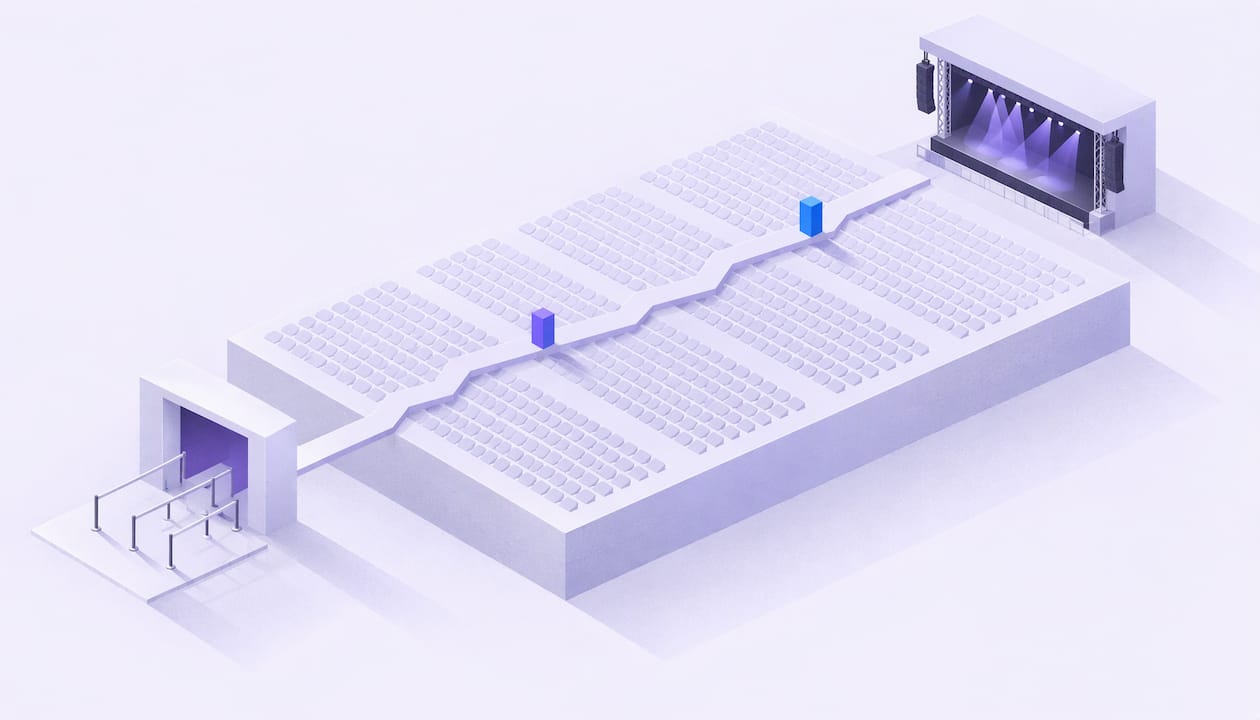
Concert Sales Curve: How UK Tickets Sell and How to Plan for It
Learn what a concert sales curve shows, how UK tickets typically sell from on-sale to show day, and how to check your pace against break-even.
 2026-11-13
Own Your Ticketing Data: A UK Promoter's Guide
What owning your ticketing data means under UK GDPR, which buyer data to keep, and how to set up referral tracking and marketing consent so it works for you.
 2026-11-12
Anti-Bot Ticketing: How UK Promoters Protect an On-Sale
How anti-bot ticketing works, what the UK ban on ticket bots means for promoters, and how to layer defences without blocking genuine fans at your on-sale.
 2026-11-11
GDPR for Event Marketing: A UK Promoter's Guide
How UK GDPR and PECR apply to event marketing: lawful basis, email and SMS consent, ticket-buyer privacy notices, retention and choosing CRM software.
 2026-11-10
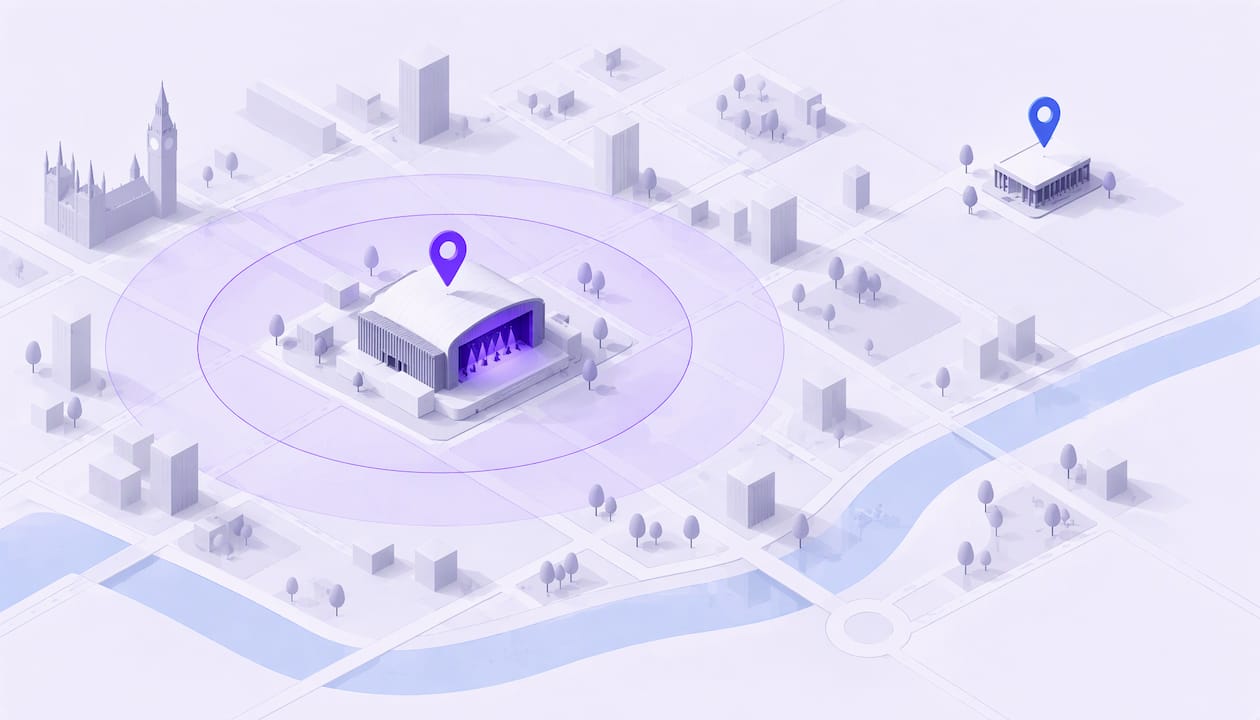
Geo-Targeting Concert Ads: A UK Promoter's Guide
How to set up geo-targeted concert ads in the UK: choose radius, split tour dates by city, track ticket sales and stay within PECR consent rules.
 2026-11-09
Drip Pricing Rules in the UK: What Ticket Sellers Must Show
UK drip pricing rules for ticket sellers: which fees go in the headline price, how VAT on booking fees works, fines, and a checklist for promoters.